Before You Start
This is a manual written from the user's point of view: it doesn't discuss technical implementation, it only tells you "what to do, where to click, what you'll see, and what to do if something goes wrong."
This tool brings several batch operation tasks — information collection · link collection · bulk direct messages · forced group joining · smart traffic routing — together into a single Telegram bot.
The core idea is just one sentence:
Use your own Telegram alt accounts (referred to below as protocol accounts) to work on your behalf, with multiple accounts rotating sends + automatic cooldowns to reduce risk.
You don't need to install any software; all operations are done by tapping buttons in Telegram. The bot handles scheduling protocol accounts, controlling sending pace, and recording the result of every execution. Open in Telegram: (https://t.me/broadxbot)
How to Use This Manual
Text with icons like
⏹️ Stop Bulk Sendand⚙️ Basic Settingsare bot button names — just tap them as shown.If this is your first time, we recommend reading the chapters in order; experienced users can jump straight to the relevant feature chapter.
Chapter 1: Beginner Overview — Get Your First Task Running in Three Minutes
1.1 What This Tool Can Do for You
What you want to do | Feature to use | Main panel entry |
|---|---|---|
Turn group members into a sendable list | Information Collection |
|
Find new groups / channels in bulk | Link Collection |
|
Send bulk direct messages to users on a list | Bulk Direct Messages |
|
Pull users from a list into your own group | Forced Group Joining |
|
Automatically follow up by DM when someone speaks in a group | Smart Traffic Routing |
|
These features aren't isolated; a common full workflow is:
Information Collection / Link Collection  →  get a list or group resources
        ↓
Bulk Direct Messages / Forced Group Joining / Smart Traffic Routing  →  reach your targets
        ↓
Task report + real-time data  →  judge results, adjust copy and account pool, then run again
1.2 What to Prepare Before Starting
Telegram alt accounts (protocol accounts): alt accounts you've raised yourself, with exported
.session+.jsonfiles of the same name.Name / avatar materials (optional but recommended): make protocol accounts look more like real users.
Message scripts: the copy you want to send, used by both bulk messaging and traffic routing.
Target list / target groups: who to send to, and which groups to collect from.
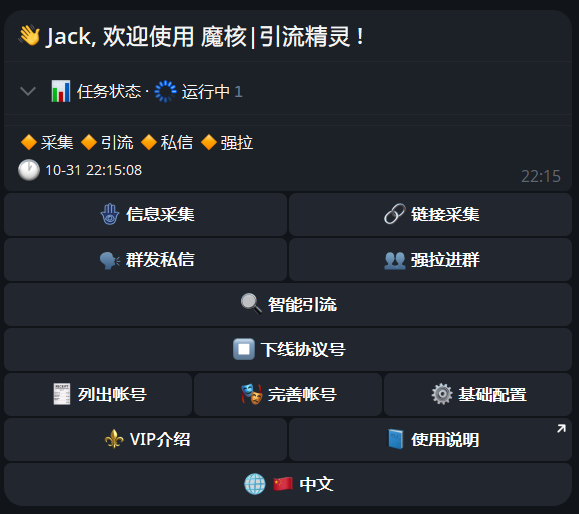
1.3 Get Started in Three Minutes
Step | What you need to do | Where to go |
|---|---|---|
1 | Package and upload protocol accounts | Send |
2 | Verify whether protocol accounts are usable |
|
3 | Start your first task | Tap any feature on the main panel |
4 | Activate / upgrade permissions |
|
1.4 Understand One Thing First: Protocol Accounts
A protocol account is your own Telegram alt account. The bot itself doesn't provide accounts; all collection, bulk messaging, and member-pulling actions are performed through the protocol accounts you upload.
So:
The status of your protocol accounts directly determines whether tasks can run and how stable they are.
A single protocol account can only run one task at a time.
The more a protocol account looks like a real user (has a name, avatar, and normal usage history), the more stable it is.
All later features are built on the premise that "you have already uploaded and verified usable protocol accounts."
1.5 Recommended Path for New Users
First complete the protocol account preparation in Chapter 2.
Use Information Collection on a small group to get your first list (Chapter 3).
Use Bulk Direct Messages to send one round to this list and check the report (Chapter 5).
Once the workflow runs smoothly, decide based on results whether to upgrade to VIP and expand your account pool (Chapter 9).
Tip: All numeric limits in the bot (number of usable accounts, target count, monitored group count, cooldown multiplier, etc.) are tied to your VIP level. See
⚜️ VIP Infoor Chapter 9 for details.
Chapter 2: Protocol Account Preparation — Upload · Verify · Complete Profiles
All batch features require usable protocol accounts first. Get this step right, and everything after is just tapping buttons.
2.1 Step One: Package Protocol Accounts
After logging into your alt accounts on any Telegram client (mobile or desktop), put each alt account's same-named .session and .json files into a single archive:
Archive format: zip, no larger than 10MB.
Each protocol account must be a pair of same-named files, for example:
aaa.session
aaa.json
bbb.session
bbb.json
One archive can contain multiple accounts; the bot will automatically extract it and tell you how many protocol accounts it found.
2.2 Step Two: Upload
Path: send /start → ⚙️ Basic Settings → 📠 Upload Protocol Account Package.
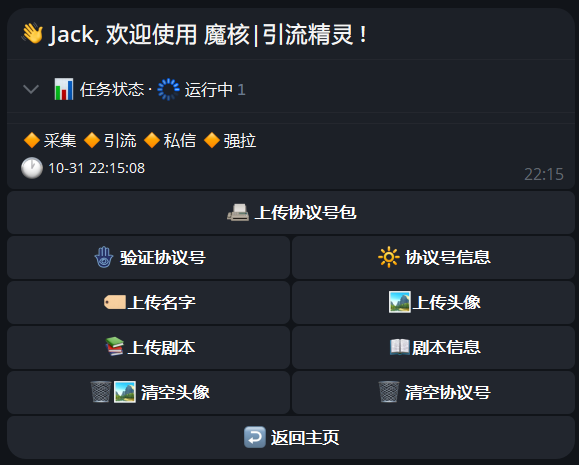
After a successful upload, the bot will show the number of protocol accounts it recognized.
If the archive is abnormal or same-named paired files are missing, the bot will prompt please upload again. Check the file names and pairing, then upload again.
2.3 Step Three: Verify Protocol Accounts
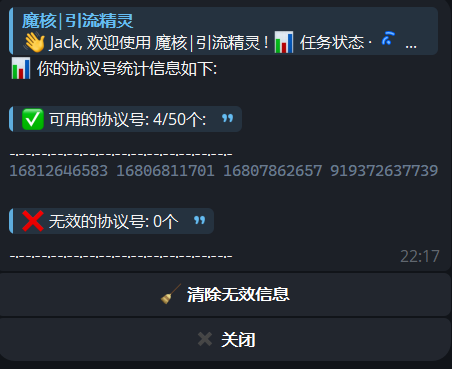
After uploading, tap 🪬 Verify Protocol Accounts (or send the command /chksess directly). The bot will check each one and report:
✅ Valid protocol accounts: n / ❌ Invalid protocol accounts: n
Invalid accounts: usually the session has expired or the device was kicked. Log in to that alt account again, re-export the files, and upload again.
To see a protocol account's balance / usage: tap
🔆 Protocol Account Info(or send the command/sess_stat).
2.4 Step Four: Complete Profiles (Strongly Recommended)
A batch of accounts with blank profiles doing high-frequency operations is easy to flag. We recommend preparing a set of "skins" for your account pool first.
Upload Names
Entry:
🏷 Upload Names.File requirements: UTF-8 encoded txt, one name per line.
Format per line:
name::bio; the bio can be omitted.
Example:
Alex::Keep it simple
Mia
Ryan::Let's talk business
Upload Avatars
Entry:
🏞 Upload Avatars.File requirements: jpg / jpeg, square, recommended at least 256 × 256.
Up to 10 images per upload.
Once materials are ready, go back to the main panel and tap 🎭 Complete Accounts, then choose one as needed:
👥 All: force-replace profiles for all protocol accounts.👤 Only accounts without avatars: only process protocol accounts that don't have an avatar yet.
Note: Accounts that are currently working won't be modified. If you want to replace everything, first run
⏹️ Take Protocol Accounts Offlineon the main panel, then run🎭 Complete Accounts.
2.5 Other Maintenance Operations
The following operations are all inside ⚙️ Basic Settings:
Basic Settings and Maintenance Operations
Entry | Purpose |
|---|---|
| Delete uploaded avatar materials |
| Uninstall all protocol accounts (you can upload again afterward) |
| Clear records of invalid accounts found during verification |
FAQ
Q: After uploading, it says "please upload again." What should I do?
Check three things: whether it's a zip file, whether it exceeds 10MB, and whether each account is a same-named pair of .session + .json.
Q: Verification found invalid accounts. Will that affect tasks?
Invalid accounts can't run tasks. We recommend clearing them, then re-exporting and uploading. Tasks will only use usable accounts.
Q: Why didn't some accounts change when completing profiles?
Those accounts are currently running tasks. First run ⏹️ Take Protocol Accounts Offline, then run 🎭 Complete Accounts again.
Security Reminder
The session file is equivalent to the key to your alt account. Only upload it to this bot, and never send it to any third party.
Once your protocol accounts are ready, you can start your first task.
Chapter 3: Information Collection — Turn Group Members into a List
Use case: You want to turn people who have spoken in a group into a list for later bulk messaging or group pulling. It collects user profile data: ID, username, whether Premium, active time, recent messages, etc. You can export it with one tap, or use it directly as the target list for "Bulk Direct Messages / Forced Group Joining."
Create a Task
On the main panel, tap 🪬 Information Collection → ➕ Create Task, then fill in:
Field | Description | Required |
|---|---|---|
Task label | For easy identification, e.g. "Group A Collection" | Required |
Collection accounts | Which protocol accounts to send into the group to monitor; multiple allowed | Required |
Collection keywords | Only collect members whose messages match these words | Can skip |
Blocked keywords | Skip if a message matches; don't collect | Can skip |
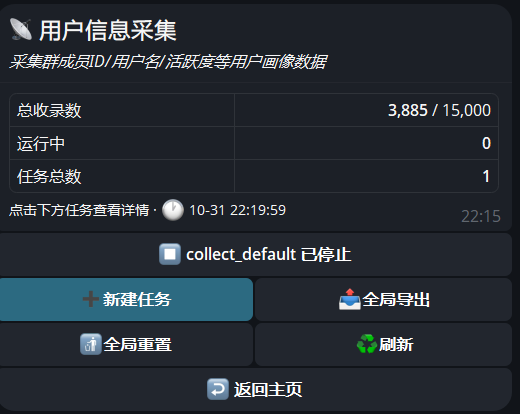
Note: The target group entered in the creation wizard will not be saved. After creation, you'll be prompted to go to the task details and tap
➕ Monitor Groupto add the group you actually want to collect from.
Add Monitored Groups and Start
After entering the task details page:
➕ Monitored Groups: paste the target group's invite link or username.t.me/addlist/...folder links are also supported and count as 1 monitoring slot.➖ Monitored Groups: remove by group ChatID; enter-1to delete all.🚹 Collection Accounts,❇️ Keywords,🚱 Blocked Words: can be modified at any time.Once configured, click
▶️ Start Collection.
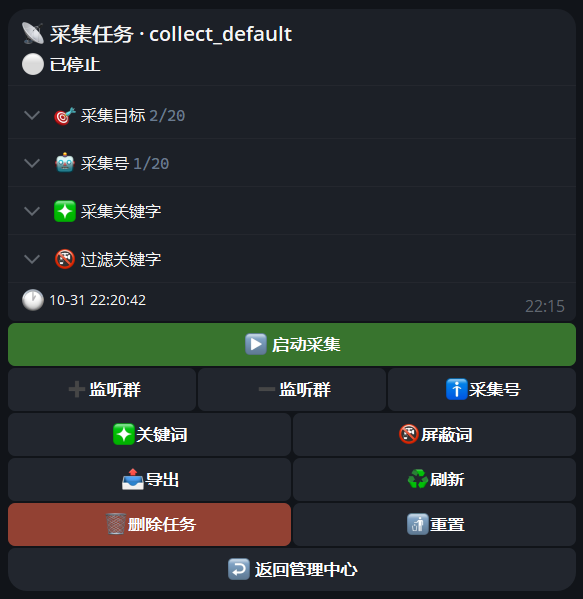
Both the number of monitored groups and the number of filter rules have VIP limits. If you exceed them, follow the prompt to ⚜️ VIP Info to compare the values for each tier (see Chapter 9).
Viewing and Exporting the List
The task detail page shows the total collected / limit, plus the live "hits" count while running.
Click
📤 Export, then choose the recent activity window: last 3 / 7 / 15 / 30 / 60 days.The exported CSV contains the following columns:
user_id, username, premium, fullname, last_active, last_wordsTask-level export is done from the task detail actions;
📤 Global Exportaggregates data from all tasks.Two global exports must be at least 5 minutes apart; doing it too early will prompt you to try again later.
Data Limits and Cleanup
When the data reaches the VIP limit, the task stops automatically and shows "Collection data limit exceeded." Export or clear the data to continue.
If the collected list is not high quality, adjust the keywords / blocked words, or remove unsuitable monitored groups and restart.
Chapter 4 Link Collection: Automatically Collect Groups / Channels
Use case: You don't have ready-made group resources on hand, and want the bot to sit in several "search groups" and automatically collect the group / channel links that others post, then store them by group and channel category. Think of it as a "radar" for finding groups in bulk.
Create a Task
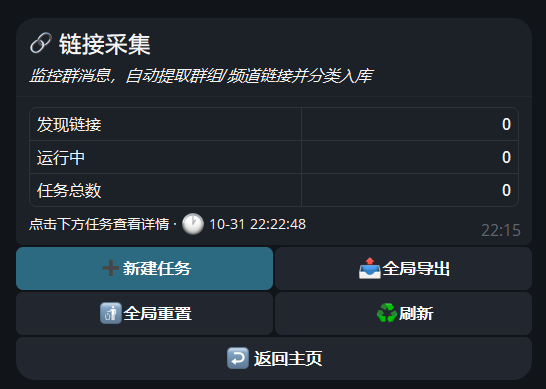
On the main panel, click 🔗 Link Collection → ➕ New Task, then fill in:
Field | Description |
|---|---|
Task label | For example, "Search Group A" |
Monitored search groups | Which groups to watch for links; regular links or folder links both work (this step is actually saved) |
Collection accounts | Which protocol accounts to assign to monitoring |
Set Filter Rules
After entering the task detail, you can set the following as needed:
❇️ Keywords: regex supported, e.g.word1|word2; only collect group / channel links from messages containing these words.🚱 Blocked Words: skipped on a match; regex also supported.➕ Monitored Groups/➖ Monitored Groups/🚹 Collection Accounts: add, remove, or adjust at any time.
Groups that cannot be joined automatically (approval required, invite expired, etc.) are shown separately in the ⚠️ Join Failed section so you can handle them manually later.
Start and Export
When configuration is complete, click
▶️ Start.While running, three KPI groups are shown: Found this run, This task, Total found / limit.
Click
📤 Export, then choose the export type: Groups / Channels / All.Task-level CSV columns:
link, title, type, member count, collection timeGlobal export has one extra column, Task Label, to distinguish sources.
Reset Data
To reset a single task's data: use
🚮 Resetin the task detail.To clear all data: use
🚮 Global Resetin the admin panel.
Tip: Reset cannot be undone. Export a backup before doing it.
Chapter 5 Bulk Direct Messages: Turn a List into Messages
Use case: You already have a list (collected yourself or prepared externally) and want to use multiple protocol accounts to send direct messages to these users in rotation. Supports multi-account rotation, random copy, AI rewriting, cooldown anti-ban, and resumable progress.
Before You Start
Protocol accounts uploaded and verified: see Chapter 2.
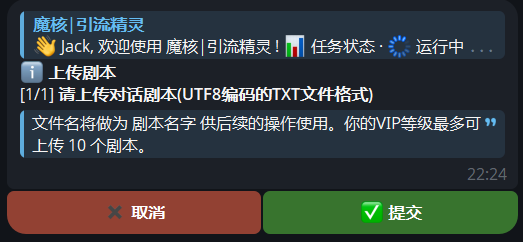
Copy scripts uploaded:
⚙️ Basic Settings→📚 Upload Script, upload a UTF-8 encoded txt. After a successful upload, the bot returns the name / line count / actor count.Target list ready: it can come from information collection, or you can prepare your own txt with "one username per line".
Create a Task
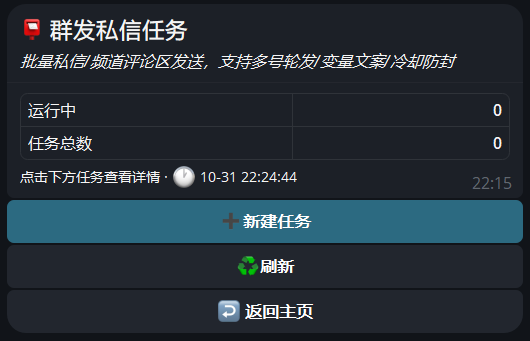
On the main panel, click 🗣 Bulk Direct Messages → ➕ New Task:
Enter a task label, e.g. "Bulk A".
Enter the starting offset; the default
0means starting from the beginning of the list. Usually you can keep the default.Once created, you enter the task detail page.
Configure the Task (Core Configuration)
Configure in order on the task detail page. It is recommended to complete all of the following:
Setting | Description |
|---|---|
| Protocol accounts participating in rotation, separated by commas or line breaks |
| Select an uploaded script; one line is picked at random for each send |
| When enabled, each send automatically uses a different phrasing (☑️ = can enable / ✅ = enabled) |
| Choose an activity window (last 3 / 7 / 15 / 30 days / all) to import users you collected |
| Upload a txt with "one username per line" to import an external list |
5.4 Start and Run
When ready, click
▶️ Start Bulk Send. The bot first pre-checks the protocol accounts and targets, then sends one by one with a random pause between sends.The detail page shows in real time:
Current progress x / y
✅ Sent successfully / 🚫 Send failed KPIs
Status of each protocol account:
⏳ Pending/🟢 Running/⚪️ Stopped/🧊 Cooling down
📋 Task Report: generates a CSV report including date, working account, target, result, and notes.
5.5 Stop, Resume, and Reset
You can click
⏹️ Stop Bulk Sendmidway; completed progress is saved.The next start automatically continues from the breakpoint; no need to reconfigure.
To run it again from the beginning: use
🔄 Reset Progress.To clear the current list: use
🔁 Reset Data.
5.6 Per-Run Limit
Each run has a success limit: number of accounts × 20. When the limit is reached, the task stops automatically and notifies you.
This is a protection mechanism, not a failure. Running it in several batches is more stable than one aggressive run.
5.7 Tips
Keep the copy conversational and avoid hard-sell words to reduce the chance of being reported.
Pair different protocol accounts with different copy; it looks more natural than every account sending the same line.
The failure reasons in the report are worth reading: if it's a target issue (deactivated, privacy restriction), there's no need to retry repeatedly; if an account is rate-limited, let it rest for a while.
Chapter 6 Force Add to Group: Pull List Users into Your Group
Use case: You have a group you manage yourself and want to invite the users on your list in bulk. The system uses multi-account collaboration + cooldown control + a more conservative anti-ban strategy.
6.1 Prerequisites (Important)
Before starting, please confirm:
The target group is a group you manage yourself.
The protocol accounts used for pulling must already be members of that group.
The group has granted the protocol accounts the Invite Users permission.
If the permission is not enabled, the bot will prompt:
"{Group name} has not enabled the Invite Users permission!"
Note: Currently each task can force-add to at most 1 group; this is the same for all VIP tiers.
6.2 Create a Task
On the main panel, click 👥 Force Add to Group → ➕ New Task, then fill in:
Field | Description |
|---|---|
Task label | For example, "Group A Force Add" |
Target group | The target group's invite link or username |
Pulling accounts | Protocol accounts participating in pulling |

Screenshot note: The "New Task" form for Force Add to Group, showing task label, target group, and pulling accounts.
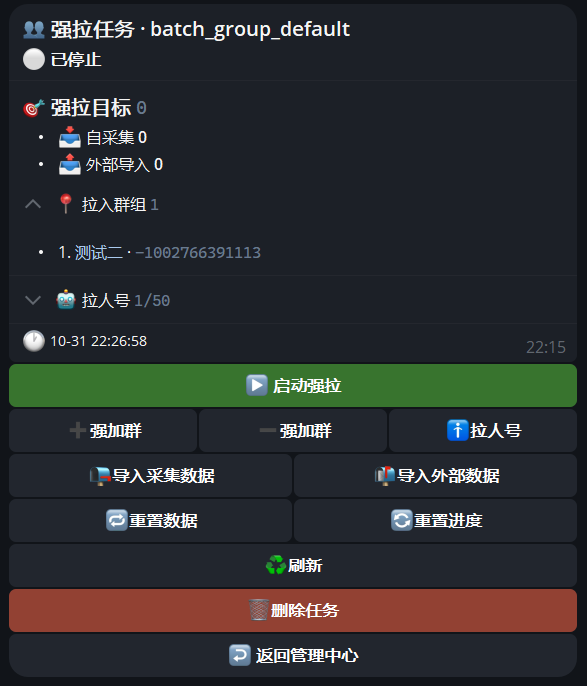
After creation, go to the task detail and confirm that "Target Group" exists:
If not, add it again with
➕ Force Add Group.To remove it, use
➖ Force Add Groupand enter the ChatID.
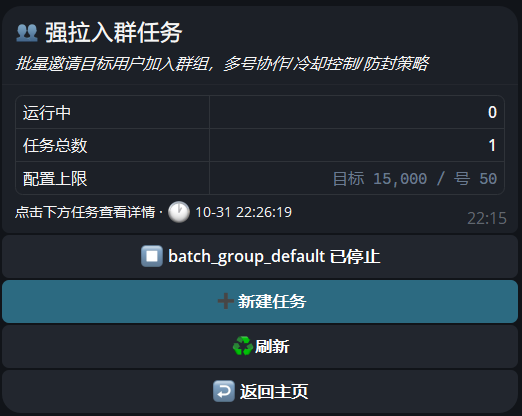
6.3 Import the List and Start
List sources are the same as for bulk messages:
📭 Import Collected Data(choose an activity window) or📬 Import External Data(txt, one username per line).🚹 Pulling Accountscan be adjusted at any time.Click
▶️ Start Force Add; while running it shows current progress, plus ✅ Invite succeeded / 🚫 Invite failed.
6.4 Result Notes
Some users cannot be pulled due to privacy settings; they are recorded as "User privacy restriction, cannot pull" and skipped, not counted as failures.
Targets who have already joined the group or have already been invited are treated as successful and are not processed again.
6.5 Notes
Force adding is more sensitive than direct messaging. The system uses a more conservative cooldown strategy (slower than the basic cooldown). Let the pulling accounts "show up" in the group first; don't start pulling aggressively right away.
Don't assign force-add tasks directly to new accounts.
Don't pull too many at once; run it in batches.
If a ban warning appears, immediately stop the tasks on that account and remove it.
Chapter 7 Smart Traffic Funnel: In-Group Triggers, Automatic Direct Message Replies
Use case: You've identified potential customers in certain groups. When someone speaks in a group you're watching and hits a keyword, the bot immediately follows up according to the script, either sending them a direct message or replying directly in the group. This is an advanced feature; most operations require a higher VIP tier, so confirm your tier first (
/my_vip, see Chapter 9).
7.1 Create a Task
On the main panel, tap 🔍 Smart Traffic → ➕ New Task, then fill in the following:
Field | Description |
|---|---|
Task label | For example, "Group A traffic" |
Protocol account | The account sent into the group |
Keywords | Trigger conditions; can be skipped |
Blocked words | If matched, the message is not processed; can be skipped |
Script | Select an uploaded script; you can also let the bot extract keywords from the script automatically |
Send method | Choose one of three, see 7.2 |
DM auto-reply | When enabled, the bot also replies automatically according to the script logic when the other party responds to a DM |
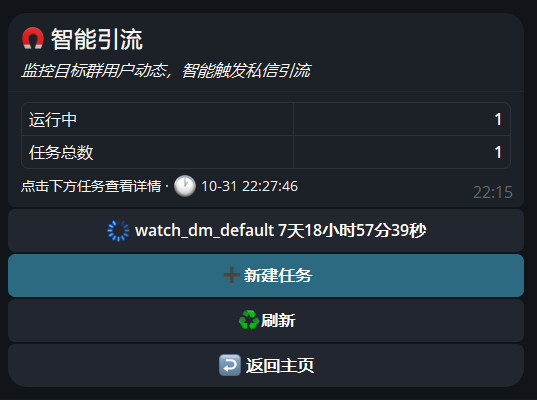
7.2 How to choose among the three send methods
Method | Behavior | Best for |
|---|---|---|
| Send a DM only when matched | Clear targets, conversion via private chat only |
| Try a DM first; if it fails, reply in the group instead | Maximize reach while keeping in-group exposure |
| Only @ reply in the group | Avoid DM disturbance and drive traffic through in-group interaction |
Tip: "DM auto-reply" suits scenarios that need ongoing conversation, turning a single outreach into a dialogue. But if your script is incomplete, it is better to turn it off first and enable it after observing the results.
7.3 Add monitored groups
The creation wizard does not collect monitored groups. After creation succeeds, you will be prompted to go to the task details and tap
➕ Monitored groupsto add the groups you actually want to watch.
You can paste the group's invite link / username / folder link, separated by commas or line breaks.
Folder links only support public groups within them.
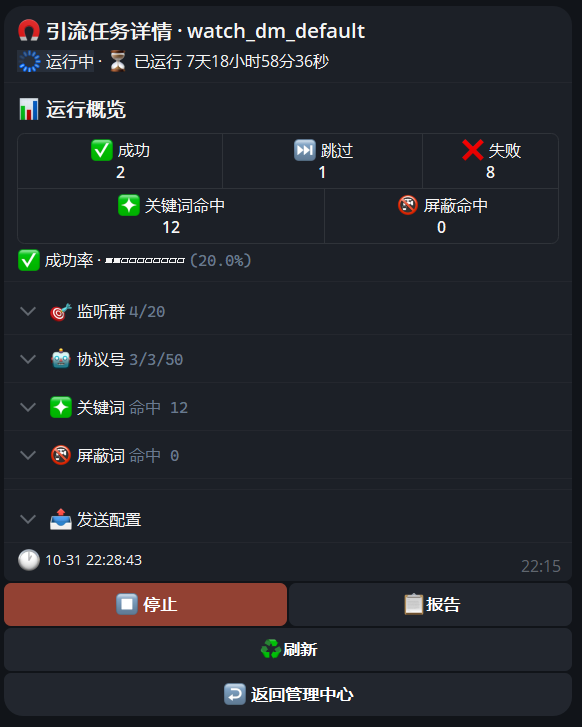
7.4 Start and dashboard
Once configured, tap ▶️ Start. The running dashboard includes:
✅ Success / ⏭️ Skipped / ❌ Failed
❇️ Keyword hits / 🚱 Blocked-word hits
Success rate
Protocol account status has five states: 💤 Idle / 🟢 Running / ⏳ Standby / 🧊 Cooling / ❌ Failed.
7.5 Notes
To remove an account from monitoring: stop the task first, then adjust the account.
Task deletion and report reset are both available on the task details page.
Do not set keywords too broadly, or the hit volume will be too large for your accounts and cooldowns to handle.
Chapter 8 Safety and Anti-Ban Basics
Batch outreach to real people always carries risk-control risk. The bot has multiple built-in protections, but you also need to understand the basic logic of "warming up accounts".
8.1 What the system already does for you
Multi-account rotation: tasks spread targets across multiple protocol accounts to avoid intensive actions from a single account in a short time.
Cooldown mechanism: each step pauses randomly, and cooldown multipliers are applied according to VIP level (see Chapter 9).
Per-run limit: a single run automatically stops when it reaches the success cap (number of accounts x 20).
Automatic risk retry / give up: rate limiting triggers a wait-and-retry; groups that cannot be passed are marked as given up rather than forced.
Automatic join verification detection: when encountering join verification that requires button clicks (such as GroupHelpBot / GeeTest), the system attempts to pass automatically.
8.2 What you need to do
Item | Recommendation |
|---|---|
Account age | Use active accounts that have been warmed up for a while; do not run volume directly on newly registered accounts |
Profile completeness | First use |
Target quality | Prefer lists you collected yourself with real people and low duplication; filter abnormal accounts from external lists first |
Sending pace | Keep reasonable cooldowns; avoid hard-sell wording in copy, as bait-style content is more likely to be reported |
Do not overdo a single run | Stop when the per-run limit is reached; running in multiple rounds is more stable than one aggressive run |
8.3 How to understand common phenomena
Chapter 8 Meaning and Handling of Common Prompts
Prompt you see | Meaning | What you should do |
|---|---|---|
"Target account deactivated" | The target account itself has a status issue | Just skip it; it is not counted as a failure |
"User privacy restriction, cannot add" | The other party has set privacy restrictions | Just skip it; it is not counted as a failure |
"{account} rate limited, retry later" | A single account acted too fast and was rate limited | The system will slow down and retry automatically; do not restart manually and frequently |
"{account} is occupied by another task" | An account can only run one task at a time | Stop other tasks first, or switch to another account |
"Collected data exceeds limit" | The collection library has reached the VIP capacity limit | Export or clear data before continuing |
"{group name} has not enabled the Invite Users permission!" | Insufficient group permissions | Enable invite permission for the protocol account in the group settings |
For the full prompt reference, see Appendix B.
8.4 When risk signals appear
Account ban warning / banned in a group: immediately stop tasks on that account, remove it from tasks, and inspect it.
Abnormally high failure rate over a period: stop the task first, check account status and target quality, and do not retry continuously.
Multiple accounts rate limited at the same time: reduce the number of concurrent accounts, or upgrade to a tier with more conservative cooldowns.
8.5 Bottom line
No batch tool can guarantee 100% no bans. Use accounts you can afford to lose for volume, and think carefully before using important accounts to take orders.
Chapter 9 VIP Levels and Key Numbers
VIP level determines the number of accounts / targets / monitored groups / cooldown pace you can use. To check your level: send /my_vip; you can also tap ⚜️ VIP info in the bot to view the same content. To subscribe or upgrade, use 👩🏻💻 Contact / Contact support.
9.1 Key numbers (VIP 1 - 4)
Item | VIP 1 | VIP 2 | VIP 3 | VIP 4 |
|---|---|---|---|---|
Mass DM / invite accounts | 10 | 20 | 50 | 100 |
Collection concurrent worker accounts | 4 | 10 | 20 | 50 |
Mass DM / invite targets | 2500 | 5000 | 15000 | 30000 |
Collection library capacity | 2500 | 5000 | 15000 | 30000 |
Max monitored groups / channels | 5 | 10 | 20 | 50 |
Filter rules | 2 | 5 | 10 | 10 |
Tasks per type | 1 | 3 | 5 | 10 |
Forced join groups | 1 | 1 | 1 | 1 |
Cooldown multiplier | 1.5x conservative | 1.2x | 1.0x standard | 0.8x accelerated |
9.2 How to read the cooldown multiplier
Multiplier | Meaning | Pace |
|---|---|---|
| Faster | Accelerated mode, processes more targets per unit time |
| Standard | Default pace |
| Slower | Conservative mode, more stable but slower |
The higher the level, the more volume you can run, and the more your account pool quality is tested. When your accounts are not stable enough, it is better to run slower.
9.3 How to choose
Trial users: VIP 1 - get the workflow running first and verify results.
Beginners: VIP 2 - double the accounts, 5000 targets, up to 3 tasks.
Stable operations: VIP 3 - 50 accounts / 15000 targets / standard cooldown, the daily workhorse tier.
Volume users: VIP 4 - 100 accounts / 30000 targets / accelerated cooldown / up to 10 tasks.
Not sure which tier fits you? Start with a lower tier for one task run, then bring your actual data to support to discuss a plan.
Appendix A Common Commands Quick Reference
Command | Function | Equivalent button |
|---|---|---|
| Open the bot main panel | - |
| Verify whether all protocol accounts are valid |
|
| View protocol account info and usage |
|
| Check current VIP level and quota |
|
Appendix B Common Prompt Reference Table
Message | Where it appears | Cause | What to do |
|---|---|---|---|
"Please upload again" | Uploading the protocol account package | The archive is corrupted, exceeds 10MB, or is missing the paired file with the same name | Check the format and file names, then upload again |
"✅ Valid protocol accounts: n / ❌ Invalid protocol accounts: n" | Verifying protocol accounts | Verification result | Re-export the invalid accounts and upload them again |
"Collection data limit reached" | Information collection | The VIP collection library is full | Export or clear the data, then continue |
"{Group name} has not enabled the Invite Users permission!" | Force-join group | Insufficient group permissions | In the group settings, grant invite permission to the protocol accounts |
"Target account has been deleted" | Mass messaging / Force-join | The target account has been deleted | Skip it; do not count it as a failure |
"Cannot add user due to privacy restrictions" | Force-join group | The user's privacy settings block it | Skip it; do not count it as a failure |
"{Account} hit the rate limit, retry later" | Mass messaging / Force-join / Traffic routing | Actions from a single account are too fast | Wait for the system to retry automatically; do not restart frequently |
"{Account} is already in use by another task" | Starting a task | One account assigned to multiple tasks | Stop the other tasks or switch to a different protocol account |
"Please try again later" (global export) | Information collection global export | Less than 5 minutes since the last export | Wait a full 5 minutes before exporting again |
"Join failed" | Link collection | Approval required, invite expired, etc. | Handle it manually in the |
Can't find the answer? Click
👩🏻💻 Contact / Customer Supporton the main panel to reach us.
This manual is compiled from the BroadxBot (https://t.me/broadxbot) user guide series. If product features are updated, the actual interface in the bot prevails.